
How to install Sharmony on Windows
Your browser and Windows will show a few warnings during download. Below we explain honestly why that happens, how to verify the file yourself, and what to click at each step.
The download starts automatically. If it does not, use the button.
Why Windows warns you
For Windows to recognise a program's publisher, the developer buys a code signing certificate — between $200 and $600 a year. Sharmony does not have one yet, so Windows sees an unknown publisher and warns by default. Every new unsigned program behaves this way, regardless of what is inside it.
It means Windows cannot confirm who released the file. It does not mean the file is dangerous — but you should not take our word for it either. Here are two ways to check for yourself.
How to verify the file yourself
The installer has been checked on VirusTotal, a service that runs a file through 63 antivirus engines, including Kaspersky, ESET, BitDefender and Dr.Web. None of them flagged it.
0 / 63
Open the VirusTotal reportThe checksum proves you downloaded our file and not something swapped in along the way. Open a command prompt in your downloads folder and run:
certutil -hashfile Sharmony-Setup-0.2.15-beta.exe SHA256The result should match this line:
9834771496c27c9395c7545d45bb45db50adb791984afd24023c95e7a1bf2db7Four steps to install
- 1
Allow the download
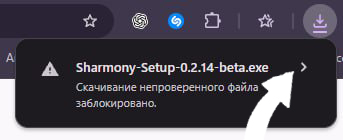
Chrome stops the download and says the file is unverified. Click the arrow to the right of the file name.
- 2
Confirm
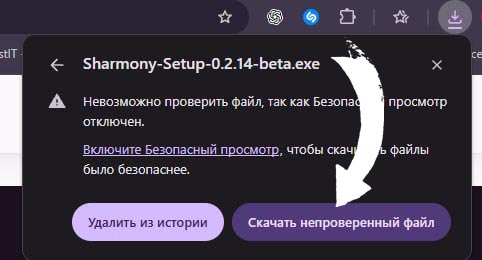
In the menu that opens, choose «Keep unverified file». The download continues.
- 3
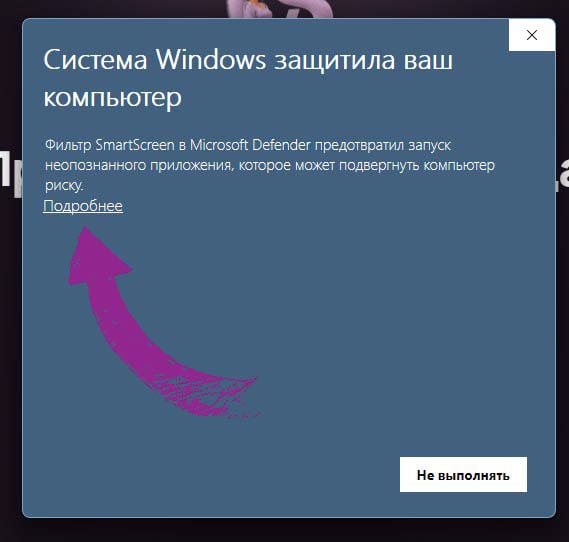
Open the file and click «More info»
A blue SmartScreen window appears on launch. The button you need is hidden behind the «More info» link — click it.
- 4
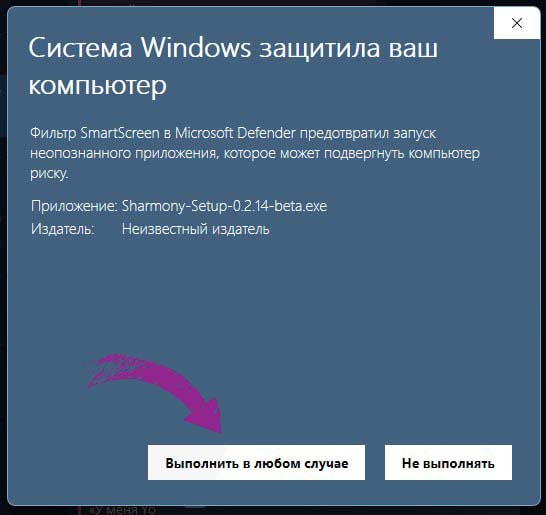
Run the installer
A «Run anyway» button appears. Click it — the normal installer takes over from there.
What happens next
The installer walks you through the usual steps. Once it starts, sign in to your Sharmony account — or create one if you do not have it yet.
Something went wrong?
If a step did not work, or the file disappeared after downloading, message us on Telegram and we will help you sort it out.
Contact support